
Promise Time™ Description
Promise Time™ is a point based capacity system used to calculate when an order will be truly ready based on current kitchen load. Each product is assigned "points" which represent the production cost (in terms of capacity) and production duration.
Example: A soft drink is set to 10 points. A burger is set to 100 points. This would be the equivalent of saying "It takes 10 times more capacity to produce a burger than a soft drink."
Promise Time™ features
- The ability to, based on planned capacity in the kitchen and real-time kitchen order load, calculate a true Promise Time™
- Support for the staff to, in real time, increase (if available) or decrease (if running behind) capacity directly from the workstation
- Works with delivery integrations. Will include the delivery time to the preparation time and return a true Promise Time™ regardless of order type.

Requirements
- Oracle Simphony Extension for Kitchen Load with integration to Future Ordering
- Access to EMC
- Access to Future Ordering back office
How to set up
- Define a default production cost (aka "points") and default production duration. (These values will be used for those products that do not have a specific cost and duration set.)
- Send an e-mail to Future Ordering support requesting configuration of these default values.
- In EMC, for each product with specific production cost and production duration
- Set specific value for production cost
- Set specific value for production duration
Pro tip: At first try, we recommend using blunt values instead of trying to exactly pin point each product's values. Think rather in terms of "small, medium, large, extra large" and categorise products into those buckets.
- In Future Ordering back office,
- Click tab Production Capacity
- Choose the store that you want to set the capacity for
- For each time slot, set the total capacity (i.e. the sum of total amount of points)
- Done.
How to view and change capacity in real time on POS in the Oracle Simpony Extension for Kitchen Load with integration to Future Ordering
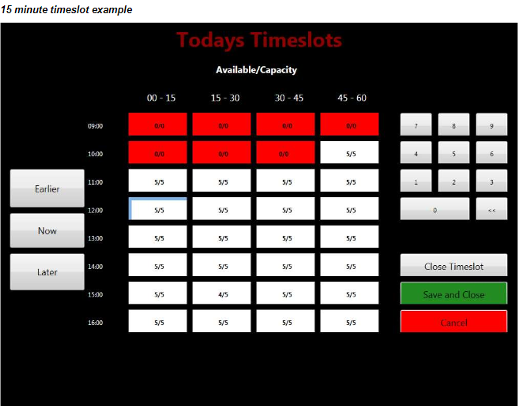
- On the till, open up Todays Timeslots, a view with time slots and their current capacity is shown
- Navigation
- Use buttons on the left (Earlier/Now/Later) to navigate between time slots
- Use buttons on the left (Earlier/Now/Later) to navigate between time slots
- Action buttons
- Close Timeslot - tap a time slot, and then press Close Timeslot in order to close it (i.e. setting capacity to 0)
- Save and Close - save changes and close view
- Cancel - close view without saving changes
- Edit time slot capacity
- Pick a time slot and edit the capacity for it by entering capacity manually using the number keypad to the upper right
- After changing the value, you need to press "Save and Close" to save the changes.
- Color scheme explanation
- Red time slots - slot is closed and/or out of capacity. No orders can be placed in this time slot
- White time slots - slot is open and has capacity (e.g. 5 points out of 5 total). Orders can be placed in this time slot as long as they do not exceed the capacity left. If so they will be moved to next available time slot with enough capacity